
Applications
Manage Applications in the Platform Console.
The Applications page lists the Plugin Applications under your Platform Console.
An Application is an isolated Plugin configuration unit. Each Application can have its own API keys, editor settings, domain, End Users, credits, and usage data.
When to create multiple Applications
Create separate Applications when you need to separate:
- Production and staging environments.
- Different products.
- Different customer workspaces.
- Different brands or domains.
- Different credit pools and usage records.
Application list
The Applications table shows every Application in the current Platform Console.
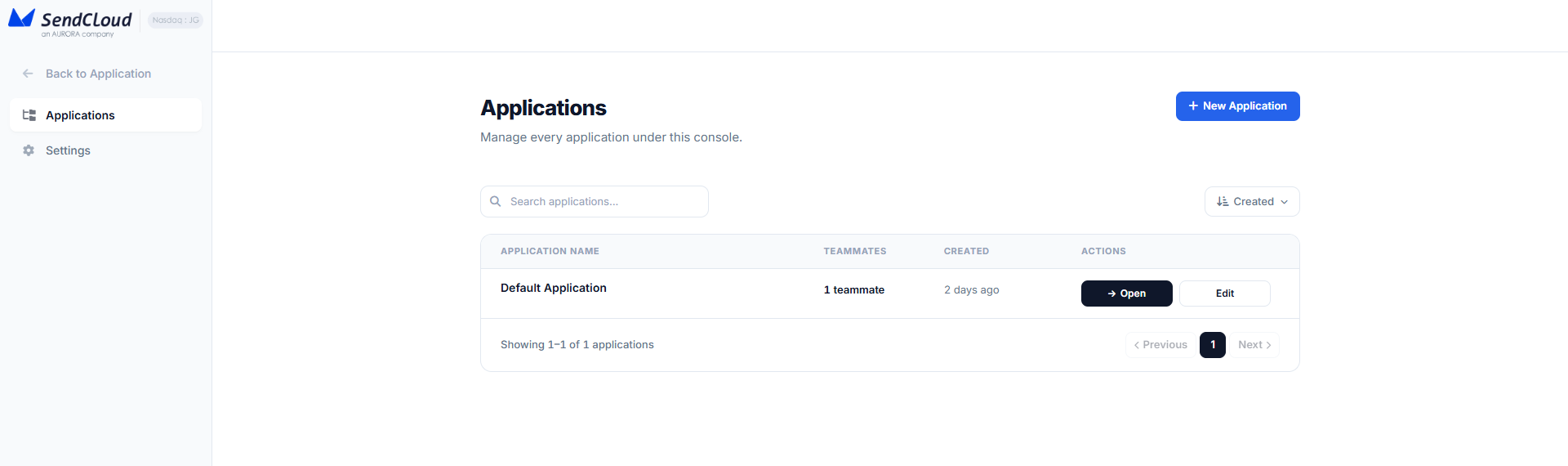
| Column | Description |
|---|---|
| Application Name | Display name for the Application. Click it to open the Application workspace. |
| Teammates | Number of teammates who can access the Application. |
| Created | Date the Application was created. |
| Actions | Open, edit, or delete the Application, depending on your role. |
The first Application is created automatically when the Platform Console is created. You can rename it at any time.
Create an Application
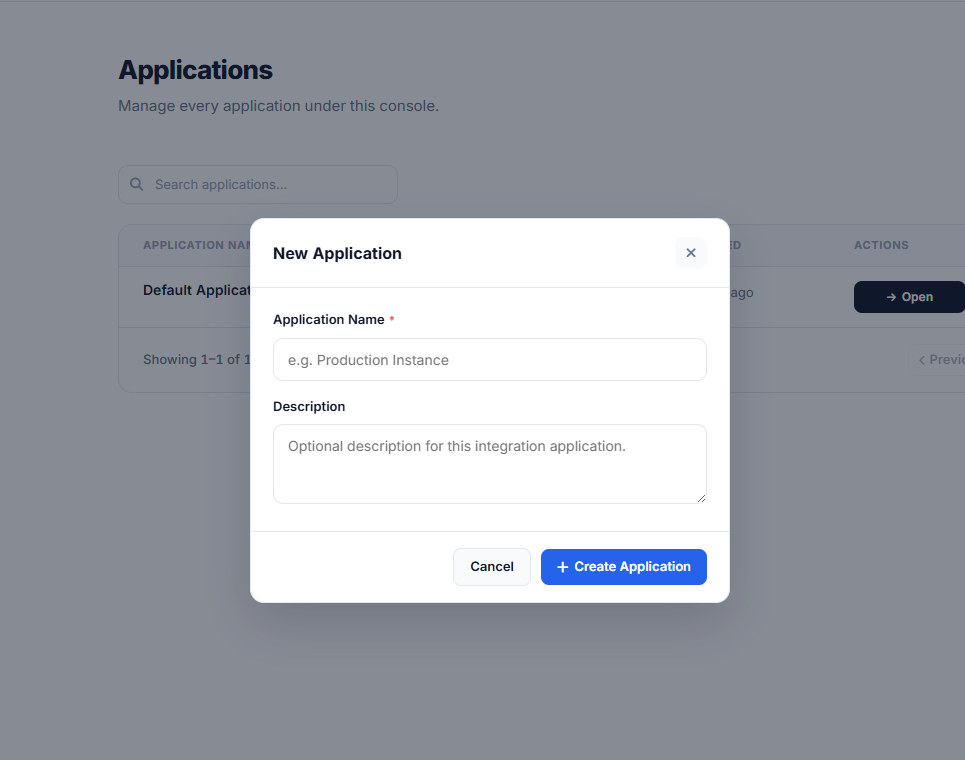
- Open Platform Console.
- Go to Applications.
- Click New Application.
- Enter the Application name.
- Click Create Application.
After creation, open the Application and configure:
- API keys
- Push URL
- Embed method
- Appearance
- Domain
- Editor controls
- End User credits
Open an Application
Click the Application name or the Open action to enter the Application workspace.
Most Plugin setup work happens inside the Application workspace, including API key creation, Push URL configuration, brand settings, domain settings, End User management, and usage tracking.
Edit an Application
Use edit actions to update Application metadata such as its name.
Changing the Application name does not change existing API keys, End User mappings, email records, Push URL settings, or usage records.
Delete an Application
Deleting an Application is permanent.
It removes Application-level configuration and data, including:
- API keys
- Push URL settings
- Appearance and domain settings
- Editor control settings
- End User mappings
- Email records
- Credit allocation and usage records
Warning: Do not delete an Application that is used by a production integration. Existing editor launch flows and API calls for that Application will stop working.
Permissions
Owner and Admin users can manage Applications across the Platform Console.
Teammates can only access Applications assigned to them. Application access is managed from Platform Console > Teammates.
Updated 6 days ago