
AI Features
This page introduces the AI features available inside the Editor plugin.
AI features help End Users create a first draft, refine email content, adjust layouts, and edit images faster. Availability may depend on your plan, Application configuration, enabled AI models, and the End User's available AI credits.
AI Create for Me
AI Create for Me starts a new email from a prompt.
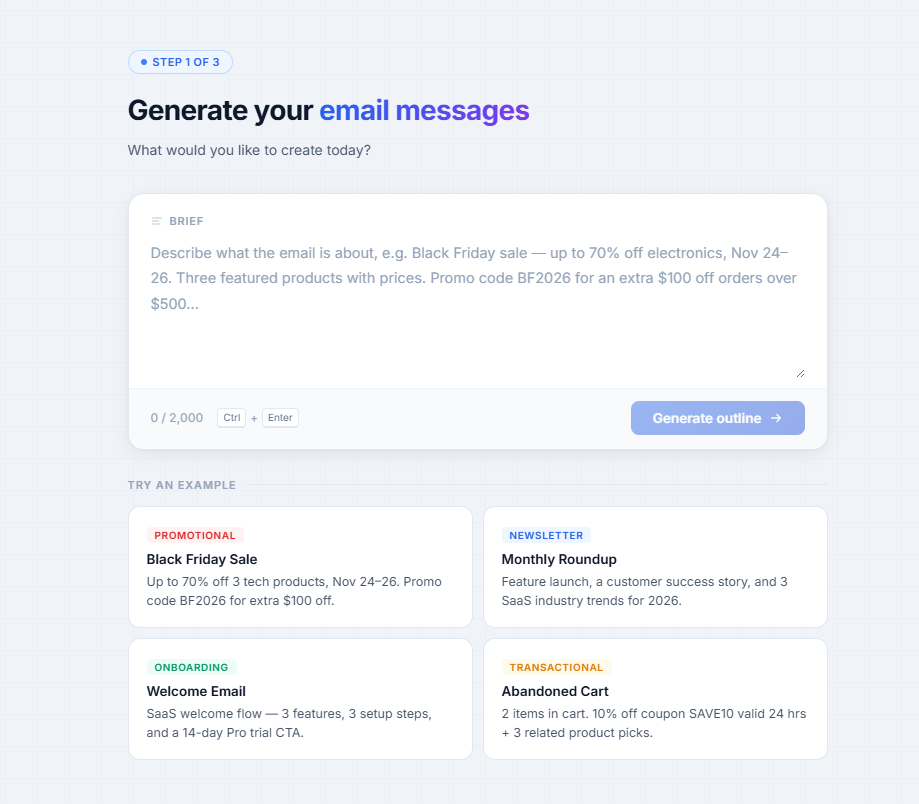
The user enters a short brief, such as the campaign goal, audience, offer, product, or message. The Editor plugin uses the brief to generate an email outline and then create an editable email.
Common use cases include:
- Welcome emails
- Newsletters
- Promotional campaigns
- Abandoned cart emails
- Product announcements
- Onboarding emails
AI Generation Flow
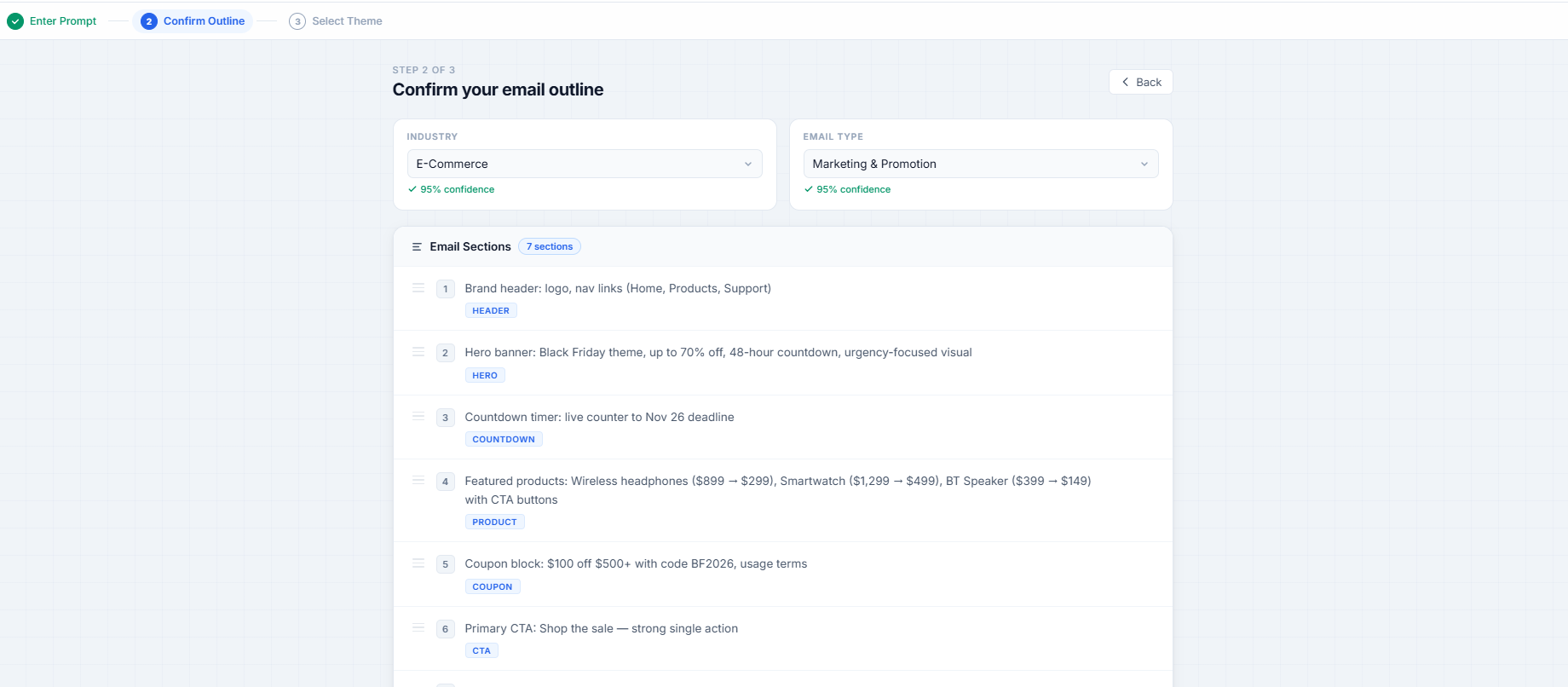
The AI creation flow guides users through a few steps:
- Enter a prompt or choose an example brief.
- Confirm or adjust the generated outline.
- Choose a visual theme.
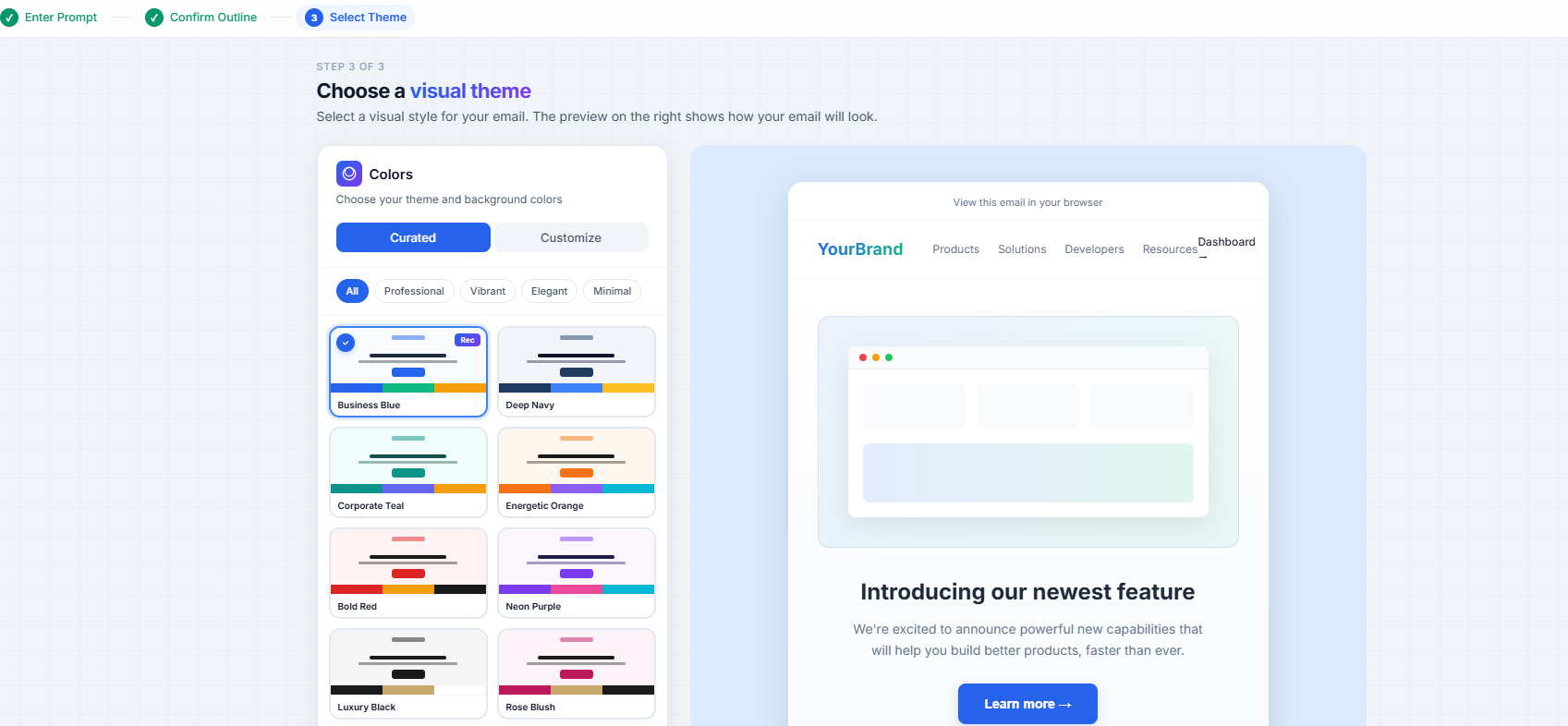
- Generate the email.
- Continue editing in the workspace.
During outline confirmation, users may adjust settings such as:
- Industry
- Scenario
- Output length
- Tone
- Target audience
- Output language
- Image source
- Image model
- Image style
The generated result opens as a normal editable email record. Users can continue editing with blocks, sections, global settings, and AI editing tools.
AI Rewrite
AI Rewrite helps users modify selected content or sections inside the editor workspace.
Users can select a section, block, or image and ask AI to improve it. The editor may provide quick actions such as:
| Category | Example actions |
|---|---|
| Writing | Improve writing, fix spelling, make shorter, make longer, simplify, add urgency. |
| Layout | Try a new layout, convert to two columns, add CTA. |
| Visual | Make more visual, add image. |
AI Edit is useful when the user already has a draft but wants to improve part of it without rebuilding the whole email.
AI Chat
The Shan AI panel lets users interact with AI through a chat-style interface.
Users can type instructions such as:
- Convert this section to a two-column layout.
- Rewrite this headline to sound more urgent.
- Add a CTA to this section.
- Make the image more suitable for a technology newsletter.
The panel may show the original and modified versions so the user can compare results before applying changes.
AI Image Editing
When an image is selected, AI-assisted image actions may be available.
Examples include:
- Remove background
- Upscale image
- Remove text
- Generate or replace image content from a prompt
Image features may depend on the selected image model, plan, and available AI credits.
Credits and Availability
AI features can consume credits.
The editor may show quota or remaining usage information while the user works. If credits are unavailable or a feature is not included in the current plan, some AI actions may be hidden, disabled, or fail with an error.
Integrators should explain to End Users which AI features are included in their plan and how usage is counted.
What Integrators Should Know
AI features do not change the embed flow.
Your product still opens the editor with:
- One-time code
- Email ID
- Optional language setting
The Editor plugin handles AI generation and editing inside the editor experience. When the End User saves, the final email content is returned to your backend through the Push URL callback.
Training Notes
When training End Users, describe the AI tools like this:
- Use AI Create for Me when starting from a blank idea.
- Use AI Edit when improving one selected section or block.
- Use Shan AI chat when giving a custom instruction.
- Use AI image tools when editing or improving images.
Users should always preview and review AI-generated content before saving or using it in a campaign.
Updated 4 months ago