
Appearance
Configure editor branding, logo, favicon, and header colors.
The Appearance page controls how the editor looks to your End Users.
Appearance settings apply to one Application. Use them to match the editor with your product or customer brand.
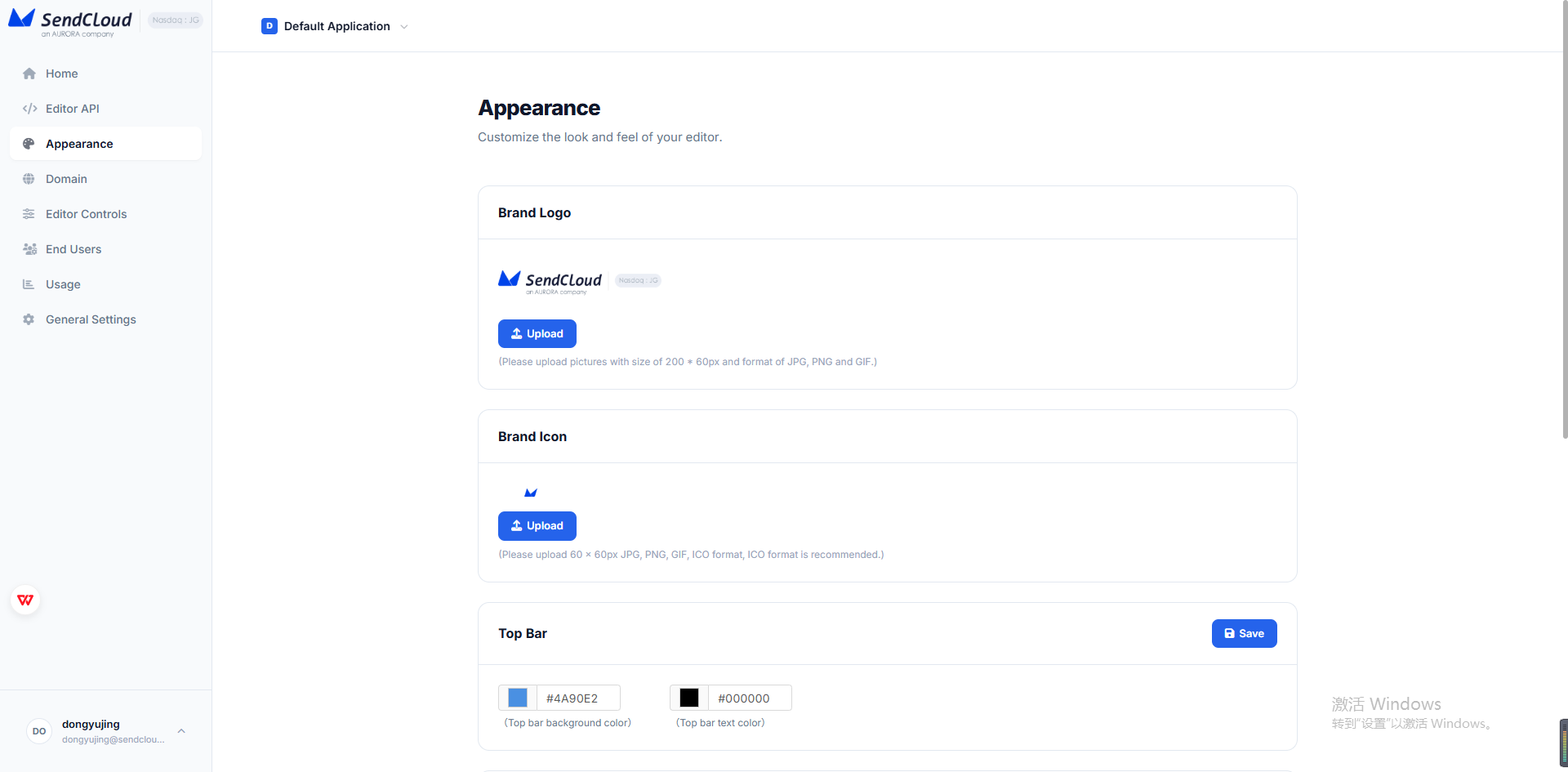
Configurable settings
| Setting | Description |
|---|---|
| Logo | Logo shown in the editor header. Use a clear PNG, SVG, or JPG file. |
| Favicon | Browser tab icon when the editor opens in a new window. |
| Header background color | Background color for the editor header. |
| Header text color | Text and icon color used in the editor header. |
| Brand display | Controls whether AuroraSendCloud branding is visible, depending on your plan and white-label settings. |
Preview
The page includes a preview of the editor shell.
Use the preview to check:
- Logo clarity.
- Header color contrast.
- Brand display.
- How the editor appears to End Users before they start editing.
Save changes
After changing appearance settings, click Save.
Changes apply to new editor sessions. Existing sessions are not interrupted.
White-label behavior
Appearance settings help your users experience the editor as part of your product.
Depending on your plan and configuration, the editor can show your logo and domain while keeping End Users inside your product experience.
Multi-brand usage
If you support multiple brands, customers, or environments, consider creating separate Applications.
Each Application can have its own appearance, domain, API keys, Push URL, End Users, credits, and usage records.
Recommendations
- Use a transparent-background logo.
- Test the logo against the selected header background color.
- Keep the logo compact so it fits the editor header.
- Use high-contrast text and icon colors.
- Test both iframe and new-window launch modes if your users use both.
Updated 4 months ago