
Sign Up and Create an Application
This page explains the minimum Console setup your team completes before developers start the embed flow.
Use this page to sign up or log in, enter a Platform Console, create or open an Application, and generate API credentials.
After these steps, continue to Complete Embed Flow for the frontend, backend, editor launch, and save callback sequence.
Step 1: Sign up or log in
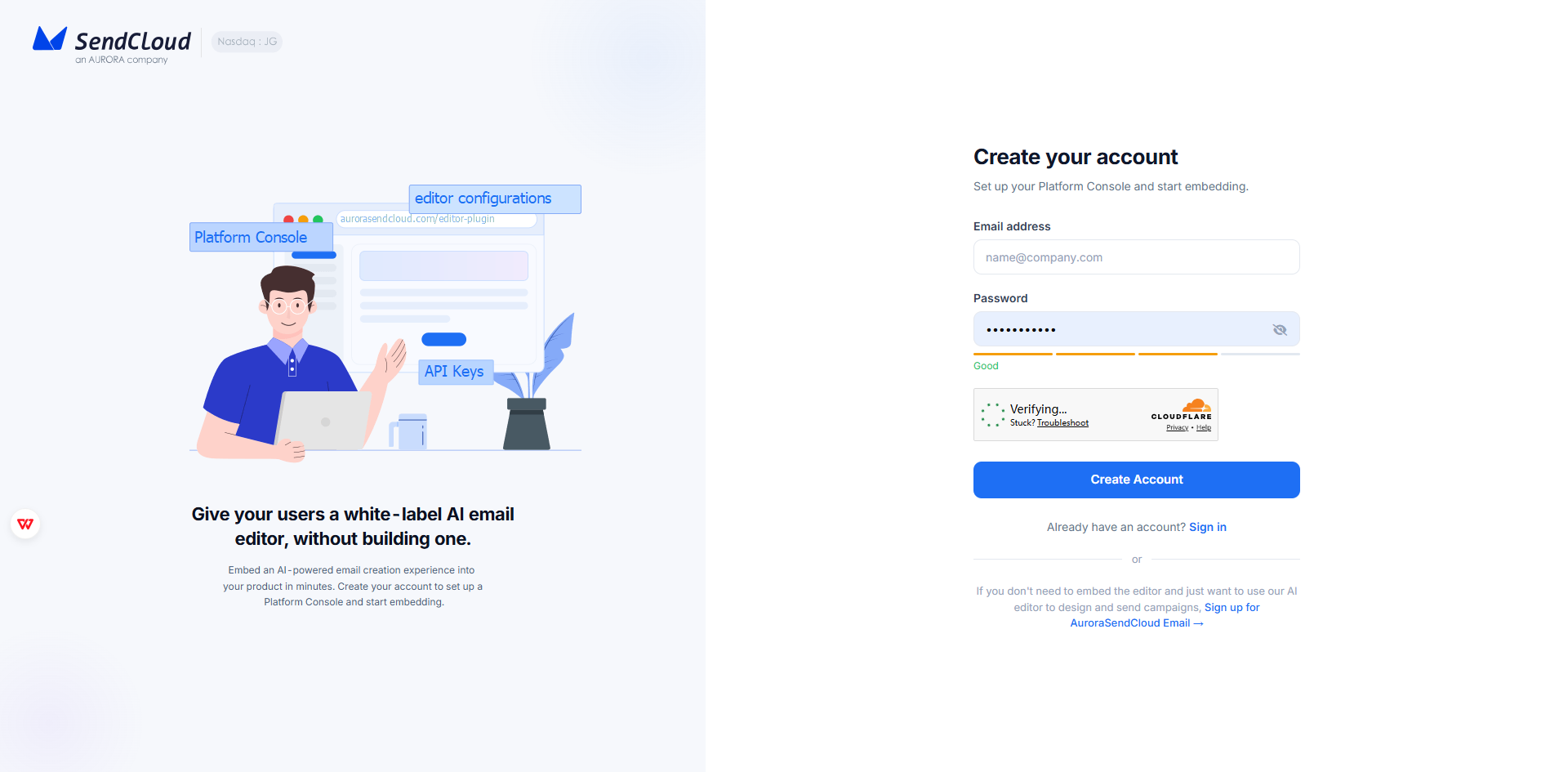
Open the Aurora SendCloud Editor Plugin entry page and sign in to the Platform Console.
- Sign up with your work email address.
- Complete email verification if required.
- Sign in to the Platform Console.
Step 2: Create or open an Application
An Application is the configuration unit used for one product, customer, brand, or environment.
You can use the default Application created during setup, or create a new one:
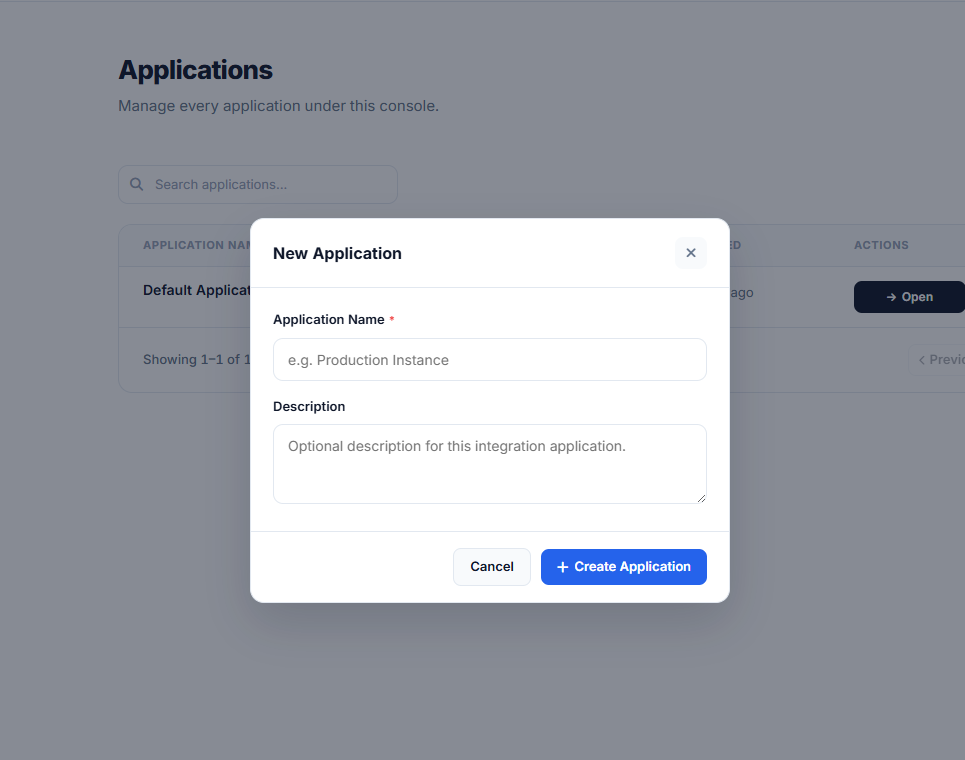
- Go to Applications.
- Click New Application.
- Enter an Application name, such as
Production,Staging, or your product name. - Click Create Application.
- Open the Application workspace.
Use separate Applications when you need separate:
- Production and staging environments.
- Products or customer workspaces.
- Brands or editor domains.
- API credentials.
- Push URL settings.
- Credit pools and usage records.
Step 3: Create API credentials
API credentials let your backend call Editor plugin APIs for one Application.
Each Application should have at least one credential pair:
Client ID + Client SecretYour backend uses this pair with HTTP Basic Auth when calling POST /access/token. The endpoint returns an Application access token used by access and email resource APIs.
Create them from:
Application -> Editor API -> Application KeysThe UI tab is named Application Keys, but the values created there are API credentials. In API documentation, these values are referred to as Client ID and Client Secret.
To create credentials:
- Open your Application.
- Go to Editor API.
- Open the Application Keys tab.
- Copy the generated Client ID and Client Secret.
- Store both values securely on your backend.
Step 4: Continue to Complete Embed Flow
After setup, your developers can implement the embed flow:
- Your backend creates or reuses the Application access token.
- Your backend creates or selects an email using the End User
userId. - Your backend generates a one-time code using the same
userId. - Your backend returns an editor URL to your frontend.
- Your frontend opens the editor.
- Your Push URL receives saved email content.
Continue with Complete Embed Flow.
Setup checklist
- Account created or invitation accepted.
- Platform Console selected.
- Application created or opened.
- API credentials created and stored on your backend.
- Push URL configured.
- Push Key stored securely on your backend.
Updated 3 days ago