
Editor Workspace
This page explains the main editor workspace that End Users use to design and edit email content.
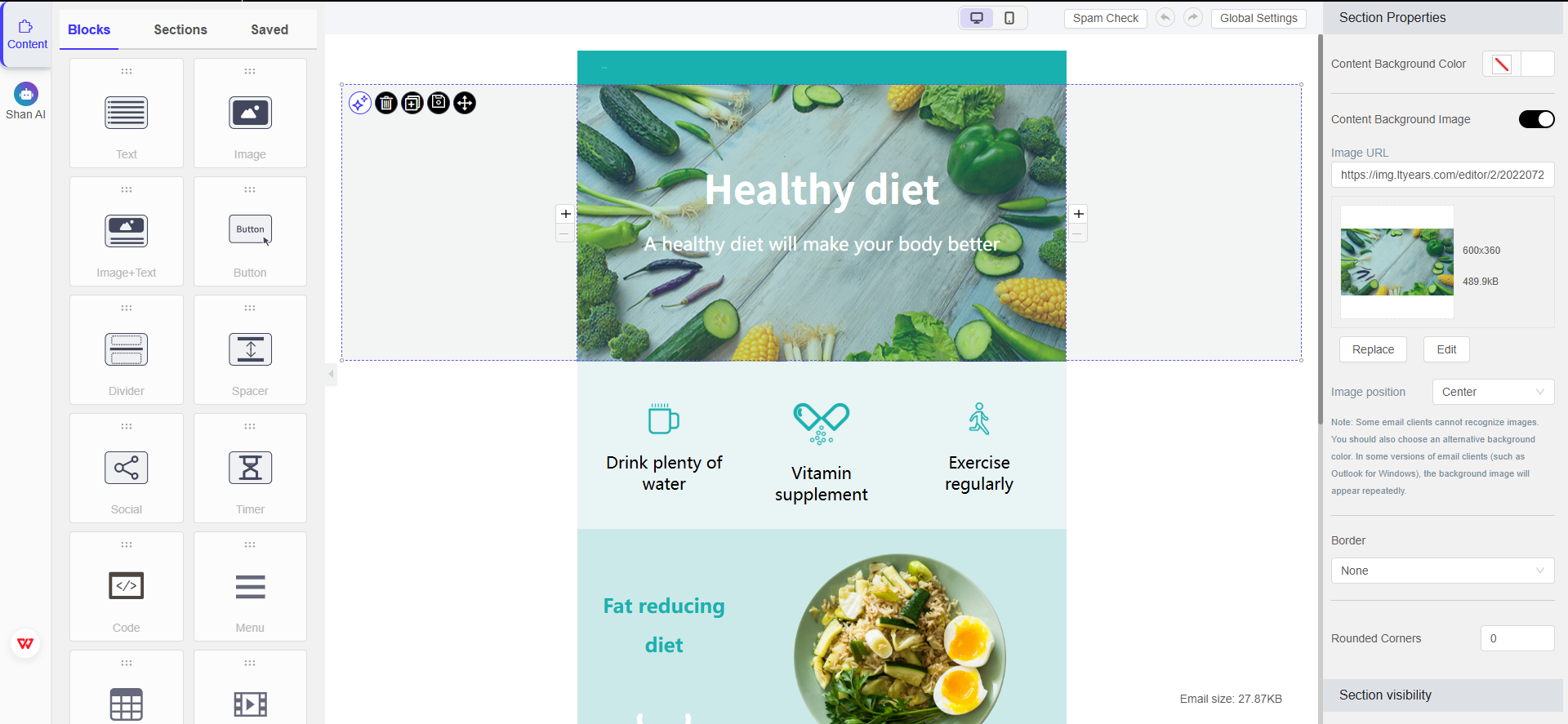
After a user starts from AI, selects a template, or imports a template, the Editor plugin opens the workspace. The workspace is where users add content, edit layout, configure styles, preview the email, and save changes.
Main Areas
| Area | What users do there |
|---|---|
| Top bar | View or rename the email, check save status, go back, preview, and save. |
| Left navigation | Switch between content editing and AI-assisted tools. |
| Content panel | Drag blocks, sections, or saved content into the email. |
| Canvas | Edit the email layout and content visually. |
| Right settings panel | Configure global settings or the selected content block. |
Top Bar
The top bar contains workflow-level actions.
Users can:
- View or rename the current email.
- See the last saved status.
- Go back to the previous editor step.
- Open preview.
- Save the email.
Saving is an important integration boundary. When the user saves, the Editor plugin sends saved content to your configured Push URL. Your frontend should not treat iframe state or browser state as the source of saved email content.
Left Navigation
The left navigation gives users access to major editor modes.
Common entries include:
- Content editing
- AI-assisted editing
The available entries may vary by plan, Application configuration, and enabled features.
Content Panel
The content panel contains reusable building tools.
Common tabs include:
| Tab | Purpose |
|---|---|
| Blocks | Individual content blocks such as text, images, buttons, dividers, social links, timers, code, and menus. |
| Sections | Prebuilt layout sections that users can add to the email. |
| Saved | Reusable content saved by the user or made available in the editor. |
Users can drag supported blocks or sections into the canvas, then edit their content and style.
Canvas
The canvas is the visual editing area.
Users can:
- Select text, images, buttons, and other content.
- Rearrange content visually.
- Edit the email layout.
- Review how the message looks while building it.
The canvas represents the editable email record. It is not the final delivery system for email sending. Your product decides how saved HTML and editor data are used after the Push URL callback is received.
Right Settings Panel
The right settings panel changes based on context.
When no specific block is selected, users may see global email settings such as:
- Email subject
- Preview text
- Email width
- Background color
- Content background color
- Font
- Link color
- Variable symbol settings
When a block or section is selected, the panel may show settings for that specific item.
Preview and Save
Users can preview the email before saving. Depending on enabled features, the workspace may also include checks such as spam checking or device preview.
When the user clicks Save:
- The Editor plugin saves the latest email state.
- The Editor plugin sends saved content to your Push URL.
- Your backend stores the returned HTML and editor data.
- Your product can show the latest saved state, preview, or next workflow step.
What Integrators Should Know
The workspace is designed for End Users. API credentials, End User tokens, and backend API calls should remain hidden from the browser.
Your integration is responsible for:
- Opening the editor with a one-time code and email ID.
- Configuring Application settings that affect the editor experience.
- Receiving saved content through the Push URL callback.
- Training End Users on the blocks, sections, AI features, preview, and save behavior available in your plan.
Training Notes
When training End Users, describe the workspace like this:
- Use the left panel to add content.
- Edit the email in the center canvas.
- Use the right panel to adjust global styles or selected content settings.
- Use preview before saving.
- Click save when the email is ready to return to the product workflow.
Updated 4 months ago